AI Object Remover: How to Erase Unwanted Objects from Photos for Free

You finally got the perfect travel shot. The light is golden, the pose is right, and the background is stunning.
Then you notice it: a stranger walking through the frame, a trash can by the wall, or a date stamp across the corner.
A few years ago, fixing that meant opening Photoshop and spending an hour with the clone stamp tool. Today, an AI object remover does the same job in seconds.
You paint over the thing you don't want, and the AI redraws the background as if the object was never there.
This guide covers how these tools work, when to use one, and why a free, browser-based option like the Free AI Object Remover is worth trying.
What is the AI Object Remover on Free AI Tool For That?
The AI Object Remover is a specialized, 100% free web utility designed to erase unwanted objects, text, logos, or people from photos instantly.
While many online editing platforms advertise free access only to introduce paywalls, subscriptions, watermarks, or cloud upload queues, Free AI Tool For That takes a different approach.
It combines AI inpainting technology with client-side processing.
The Technology Behind It: LaMa Inpainting
The tool at freeaitoolforthat.com uses LaMa (Large Mask Inpainting).
LaMa is known for handling large missing areas, which is where many older methods fail. Removing a small dust spot is easy. Removing a whole person standing in front of a patterned background is hard, and this is the kind of job LaMa was built for.
The result is a reconstructed background that looks natural, with fewer visible seams, blurs, or ghosting.
Why Privacy Matters More Than You Think

Most free online editors work like this: you upload your photo, their server processes it, and you download the result. That means your personal images, whether family photos, client work, or product shots, travel through someone else's infrastructure.
This tool takes a different route. It uses WebAssembly to run the AI model directly inside your browser. According to the site, your photos are processed in your device's memory and never sent to a server.
For anyone handling sensitive images, or anyone who dislikes handing over their photo library, that is a real advantage.
Key Features
- Precision removal: You choose exactly what to erase. Brush over a photobomber, a sign, or a stain, and only that area is regenerated.
- Smart background reconstruction: The AI analyses the area around your selection and rebuilds it so the edit is hard to spot.
- Free and unlimited: The site states there are no watermarks, subscriptions, credit systems, or hidden fees. You don't need an account or a credit card either.
- Common formats supported: You can select JPG, PNG, and WebP files up to 20MB.
How to Use the AI Object Remover (Step by Step)
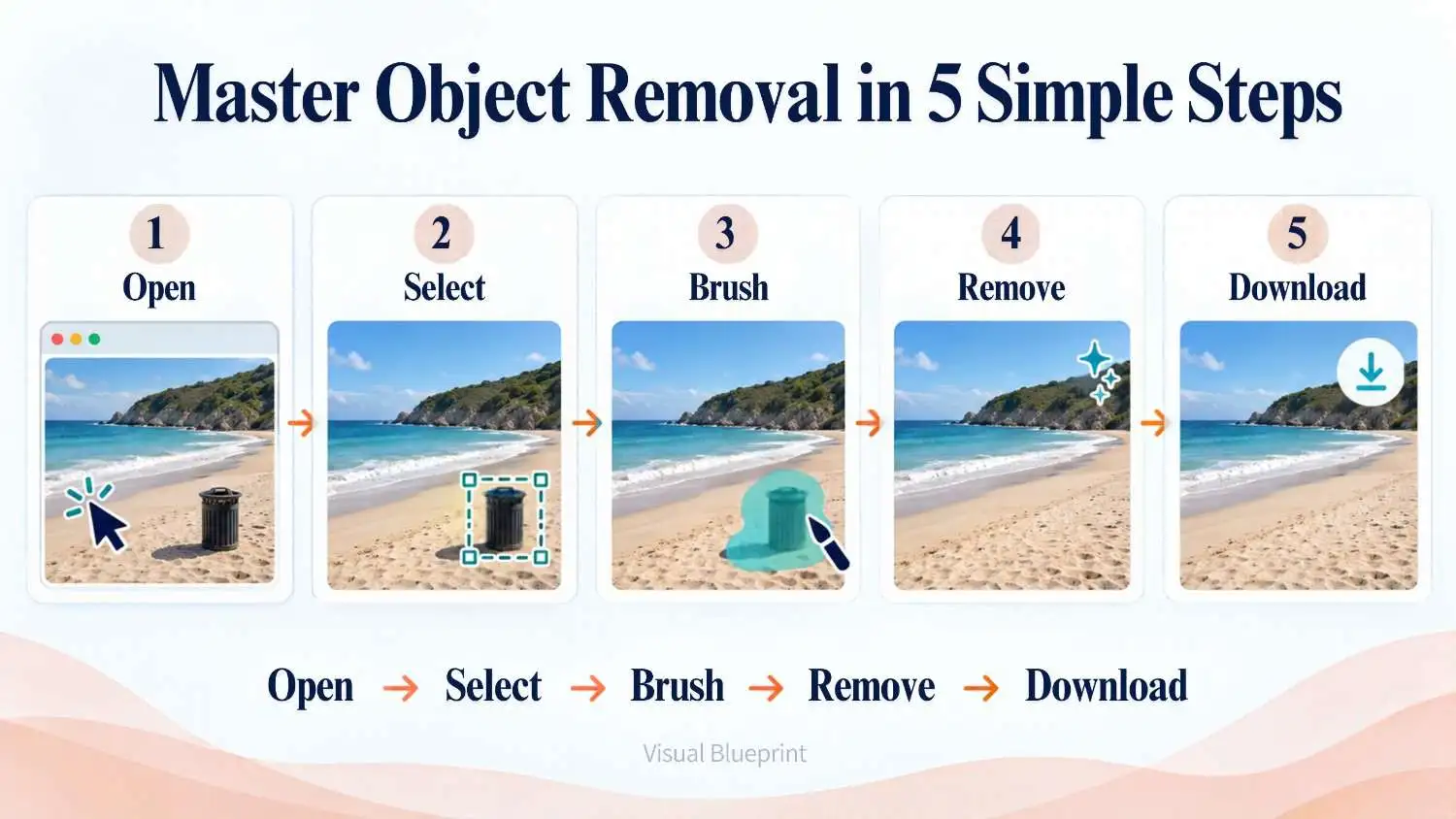
- Open the tool: Go to the AI Object Remover page. No registration is needed.
- Select your image: Choose a JPG, PNG, or WebP file from your device.
- Mask the unwanted object: Use the brush to paint over whatever you want gone. Cover the whole object, including shadows and reflections, for cleaner results.
- Run the removal: The AI fills the masked area with a reconstructed background.
- Check and download: Zoom in to inspect the edges. If something looks off, undo and try again with a slightly larger or smaller mask, then download the result.
Practical Tips for Better Results
- Mask a little beyond the object: Leaving a thin edge of the object behind confuses the AI. Cover shadows too.
- Work in small passes: For a crowded scene, remove one person at a time instead of masking everything at once.
- Start with high-resolution photos: More detail around the object gives the AI better information to rebuild from.
- Simple backgrounds work best: Sky, grass, sand, walls, and water are easiest. Complex patterns like fences or detailed crowds may need a second attempt.
- Zoom in before exporting: Always check edges and repeating textures.
Who Can Benefit from an AI Object Remover?
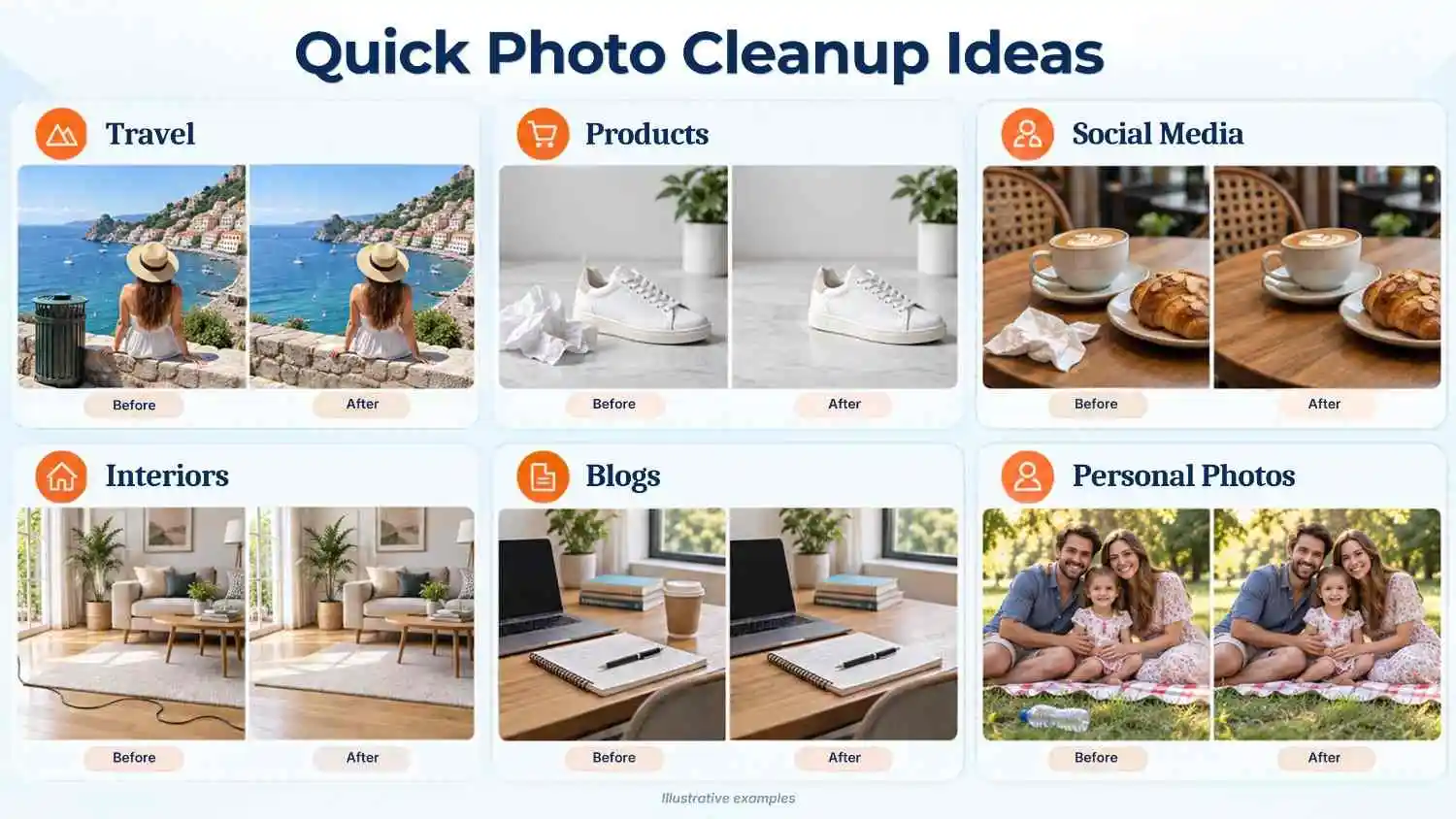
- Travelers and casual photographers: Remove tourists, signs, and cars from landmark photos.
- Ecommerce sellers: Clean up product images by removing stray items, dust, or background clutter so listings look professional.
- Social media creators and marketers: Clear distractions from visuals before posting. Cleaner images can help keep attention on your subject.
- Real estate and interior photographers: Remove cables, bins, or personal items from property photos.
- Bloggers and content teams: Prepare polished featured images without hiring a designer for small fixes.
- Anyone fixing everyday photos: Skin blemishes, date stamps, text overlays, and photobombers can all be removed. The site says it also handles text and watermarks you want to remove from your own images.
A Note on Responsible Use
Removing a watermark from an image you don't own can violate copyright. Use the tool on your own photos or on images you have permission to edit.
The technology is powerful, so use it ethically, especially with images of people.
How It Compares to Paid Alternatives
Tools like Adobe Firefly, SnapEdit, and Cleanup.pictures are popular, but many rely on credits, subscriptions, or cloud uploads. The freeaitoolforthat.com tool positions itself as a no-cost alternative with local processing.
Paid platforms may still offer extras such as batch processing or higher-resolution output, so the best choice depends on your workload. For quick, occasional edits, a free in-browser tool covers many everyday needs.
Frequently Asked Questions
1. Is the AI Object Remover really free?
Yes. The site states it is free, with no signup, credits, or credit card required.
2. Are my photos uploaded to a server?
According to the site, processing runs locally in your browser through WebAssembly, so images stay on your device.
3. Can it remove text and watermarks?
Yes, it can remove text, date stamps, and blemishes. Only remove watermarks from images you have the right to edit.
4. What file types are supported?
JPG, PNG, and WebP files, up to 20MB.
5. What AI does it use?
It uses LaMa (Large Mask Inpainting) to reconstruct the background.
Final Thoughts
Unwanted objects no longer have to ruin a good photo. With modern inpainting models like LaMa, removing a person, a line of text, or a stray object can take seconds instead of hours.
According to the site, this tool runs locally in your browser, offering free editing while keeping your photos on your device.
If you have a photo sitting in your gallery that would be perfect "if only that one thing wasn't there," try the Free AI Object Remover and see how clean the result can be.
Ready to try our AI tools?
Experience the power of free, private AI tools running directly in your browser.
Explore All Tools