Before After Video Maker: Create Amazing Before-and-After Videos Online for Free

Create Amazing Before-and-After Videos Online for Free
Want to turn two photos into an engaging transformation video? A free before and after video maker is very helpful in demonstrating differences with slider animation. Before and after video maker is useful for any purpose, be it change in physique, renovation of a home, editing of photos or improvement in a product.
With the Before After Video Maker by FreeAIToolForThat, you can create professional-looking comparison videos directly in your browser without complicated editing software. Simply upload your before and after pictures, choose your preferred video resolution and animation duration, and generate a smooth photo comparison video in seconds. This free online before and after video maker requires no registration, adds no watermarks, and processes images locally in your browser for greater privacy. With portrait and landscape options, you can easily create before-and-after videos for Instagram Reels, YouTube Shorts, social media posts, and professional portfolios.
Why a Slider Video frequently Works Better Than a Still Image
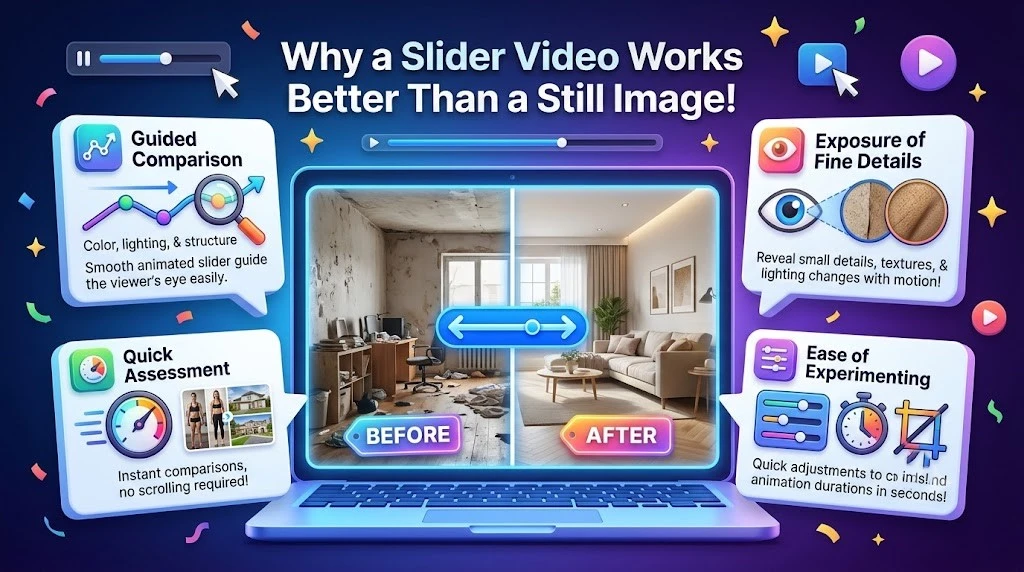
A before-and-after slider video makes visual comparisons easier by revealing changes through smooth animation. Instead of examining two separate images, viewers can quickly spot differences in colors, textures, and overall appearance.
• Guided comparison: The moving line leads the eye through the process and highlights any change in lighting, colors, textures, and overall structure.
• Exposure of fine details: Through motion, it is possible to see some of the smaller differences that might have been missed in a pair of still images.
• Quick assessment: An instant alignment and comparison show impressive improvements in areas like real estate renovation, products shots, or fitness achievements without any need to scroll through a photo gallery.
• Ease of experimenting: It is easier to test different crop and duration options using instant processing features until all the differences become clear.
Actual Usage of the Tool
First of all, you open the page, upload picture before, then after. Both images are displayed in the user interface and you can see that they are aligned relatively. Then, you set the resolution and the duration of the animation. The video is created on your computer or mobile phone and you can download it immediately. JPG, PNG, WebP formats are supported for uploading. WebM format of the video is created, which will work on any modern mobile device or any social media website. If you need it in MP4 format, then simply convert it via some online browser service or editor. You do not have to wait for the rendering in the queue since everything is done on your computer or mobile phone instantly. It takes just a few seconds even on average device and you can use this utility for working with clients or any images which you do not want to upload anywhere else.
Practical Use Cases
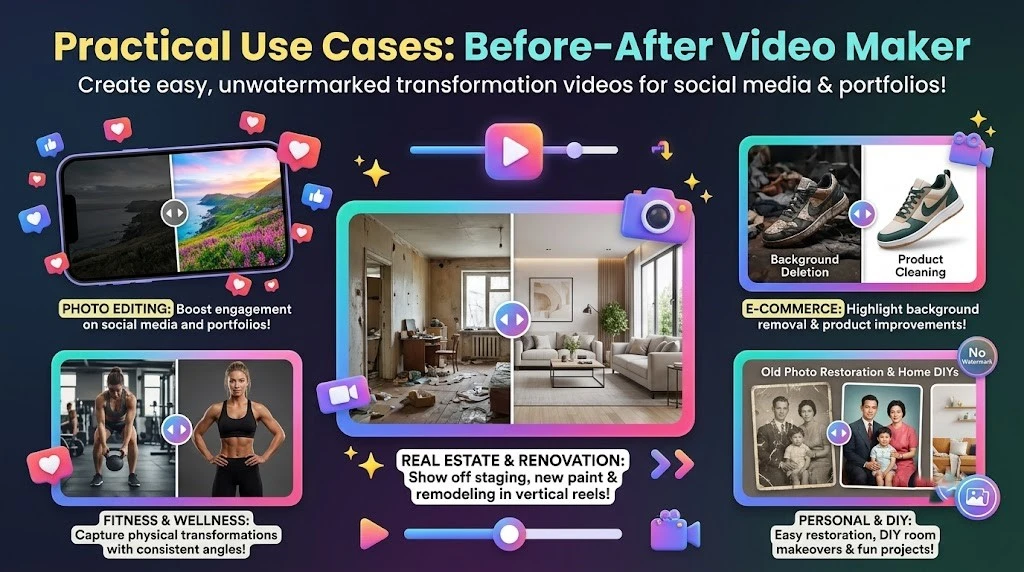
FreeAIToolForThat is designed specifically for the creation of unwatermarked comparison videos for social media without the hassle of having to configure a complete video editor software.
• Photo editing: Creates more engagement on social media platforms as well as portfolios than traditional grids that compare two images side-by-side.
• E-commerce: Emphasizes product cleaning, background deletion, and lighting changes in products by merchants and product photographers.
• Real estate, renovation projects: Immediately demonstrates any staging, new floor or paint in vertical stories and reels via matching camera angles.
• Fitness and wellness: Captures physical transformation effectively as long as the angle and lighting are consistent in both photos.
• For personal projects: Easily creates comparison videos ranging from restoration of old photos to simply changing something in the room.
• Specific usefulness: Creates the essential visual transformation automatically; however, adding music, text, or additional scenes can be achieved by exporting the clip into another application.
Tips for Good Display
Creating an effective before and after video depends on the use of two pictures with the same angle, lighting, and framing. The same point of view, the same lighting and framing make the tool more readable. Too large discrepancies in terms of angle and distance will lead to jarring results even when the tool crops perfectly. It is advised to take the after image while the before image is still visible on your phone screen or to use a tripod for both shots.
There are several cropping considerations as well. While the tool gets rid of black bars automatically, you may wish to take into consideration the positioning of the object that should be revealed. The face or the feature of a product that ends up close to the border will be awkwardly cropped. Previewing before downloading is always advisable.
The duration of the animation is mostly a preference and the question of the platform used. Three seconds work well for very rapid social media posts. Ten seconds give viewers more time to catch all the details. This may be preferable for a portfolio reveal or renovation projects. Since it takes no time and costs nothing to create another reveal, it is possible to try different versions.
Private, Free, and Watermark-Free Video Creation
Unlike many online video editors, this tool processes your images directly in your browser, helping keep your photos private.
• Full privacy: This application processes all files on the device that you are using and does not upload anything, which is convenient for client projects, medical pictures, and photos of your progress.
• Smooth process: There is no registration barrier or watermarks to be removed.
• Convenience: You are able to open this tool on your mobile phone, produce a vertical clip, and share it on social media without using any additional devices.
• Speed depending on the device: Being a local tool, the handling of really big images and old phones may take more time.
• Limitations on the resolution: Outputs will be 720p or 1080p WebM clips; if you need 4K or other more effects, you will have to use a conventional editor.
A Practical Middle Ground
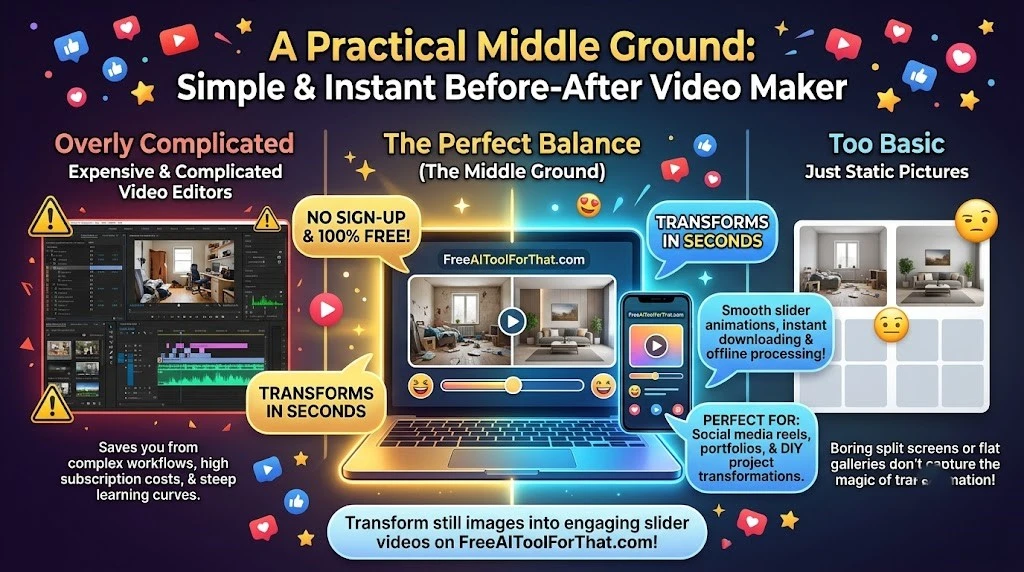
The before-and-after concept has always worked well since people enjoy seeing results. The problem used to be how much time it would take to create a short video out of two pictures. While full editors are able to do the trick, they introduce some unnecessary complications which are avoided by those who want just a plain and fast reveal effect. A special web browser-based editor which takes care of everything – the slider animation, the cropping and the final file – eliminates all these concerns.
The Before After Video Maker, found at freeaitoolforthat.com, falls right into this category. It is available for free use, works offline, creates an easily shareable video in a matter of seconds and leaves more complicated tasks to specialized editors. To any user who is constantly sharing transformations from photo manipulation to product development and from renovations to personal evolution, this application takes away the post only to static pictures.
Conclusion
The Before After Video Maker is the fastest and most secure method of converting still comparison images into slider videos. This is due to the fact that it allows one to bypass all the difficulties associated with learning a complicated video editing software, as well as the use of a cloud-based video editor.
Frequently Asked Questions
What does the Before After Video Maker do?
It changes two fixed “before” and “after” images into the comparison video via left-to-right slider effect.
Does the program offer any fees, and does it put any watermark on my videos?
The tool is totally free of charge and doesn’t require any registration, not to mention adding watermarks to your videos.
Is my photo uploaded somewhere?
No. All rendering happens locally on your device's browser using HTML5 canvas, ensuring full privacy for sensitive or client photos.
What file formats are supported?
You can upload JPG, PNG, and WebP images. The tool exports the final animation in WebM format.
What customization options are available for the video?
You can choose either portrait or landscape orientation, select between 720p and 1080p resolutions, and set the animation length to 3, 5, or 10 seconds.
Does it work on mobile phones?
Yes, it works directly in any modern mobile browser without requiring a dedicated app download.
How can I get the best results?
Maintain identical perspective, lighting, and framing between both shots. Using a tripod or keeping the "before" image visible on your screen while taking the "after" shot helps align the images perfectly.
Ready to try our AI tools?
Experience the power of free, private AI tools running directly in your browser.
Explore All Tools