Free AI Online OCR: Pull Text Out of Any Image in Seconds

Say you've got a screenshot packed with useful text. Or a crumpled receipt you photographed at the till. Or a scanned form that won't let you select a single word. Typing it all out again is nobody's idea of a good afternoon.
A free AI online OCR tool fixes that. You upload the image and get text you can edit. There's no account to create, nothing to install and no payment page waiting at the end.
Below I cover what AI OCR actually is, why the Free AI Online OCR tool from FreeAIToolForThat is worth a bookmark, how to run it, and a few habits that improve your results.
What Is AI Online OCR?
OCR stands for Optical Character Recognition. It's software that looks at the text inside a picture and turns it into real characters, so you can copy, search, edit and paste them like any other text.
The older generation of OCR matched shapes against fixed patterns. That worked on a clean printed page and not much else. Today's AI-based tools use deep learning models trained on a huge range of fonts, layouts and lighting, which is why they cope so much better with crooked phone photos, dim shots, screenshots and even handwriting.
"Online" just means it runs in your browser tab. Open the page, drop in your image and you're done.
What Makes This Tool Different
Free OCR sites are everywhere, and most of them have a catch. Some force you to sign up.
Others cap you at a few scans a day, stamp a watermark on the output, or push you toward a paid plan the moment you want anything useful. This one skips all of that.
- Actually free: You don't register, enter a card or start a trial. There are no hidden fees either. You open the page and go.
- No limit on conversions: The processing happens on your own device, so nothing stops you from converting two hundred images in a row. One receipt or a whole folder, it behaves the same.
- Over 100 languages: English, Spanish, Chinese, Japanese and many more are detected automatically, so you never have to choose a language first. If your files come in a mix of languages, that saves a lot of fiddling.
- Common image formats: It accepts JPG, JPEG, PNG, WebP and BMP. You can also paste straight from your clipboard, which is handy right after you've captured a screenshot.
- Works on a phone: Any up-to-date mobile browser will do. Take a picture, upload it and copy the text while you're out and about.

Privacy: What Most OCR Sites Don't Mention
Think about what a typical online OCR service does. Your image goes up to someone else's server, gets processed there, and the text comes back. For a meme, who cares.
For a passport scan, a signed contract or a bank statement, you probably should.
This tool takes another approach. It runs the AI model inside your browser using WebAssembly, which lets demanding calculations happen on your own machine. After the model has loaded, your images are processed locally instead of being sent off to a server.
According to the tool, it doesn't store your images or the text it extracts.
If you handle client paperwork, legal documents or private notes, that matters a lot. It's still sensible to skim the privacy policy of any tool before you give it sensitive files, but keeping the work in the browser removes the largest risk right away.
How to Use It
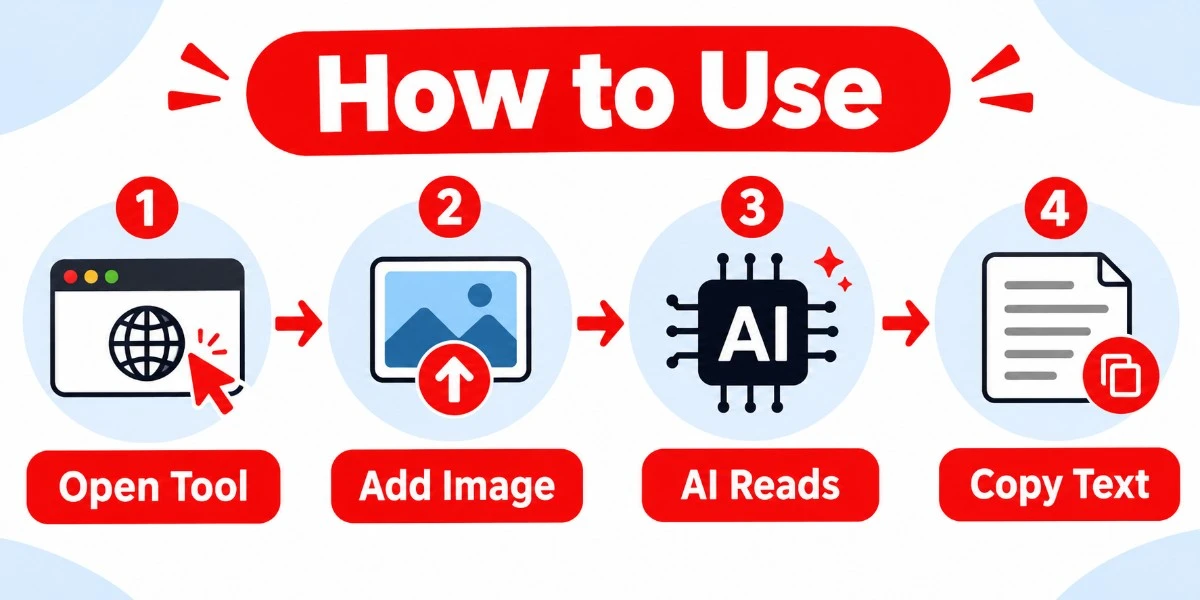
There's not much to it. Four steps:
- Open the tool at freeaitoolforthat.com/ai-online-ocr.
- Add your image: Upload a file, snap a photo on your phone, or paste one from the clipboard.
- Wait a moment: The model works out the language by itself and pulls out the text.
- Copy the result into a document, spreadsheet, email or CMS, then tidy it up however you like.
Who Gets the Most Out of It
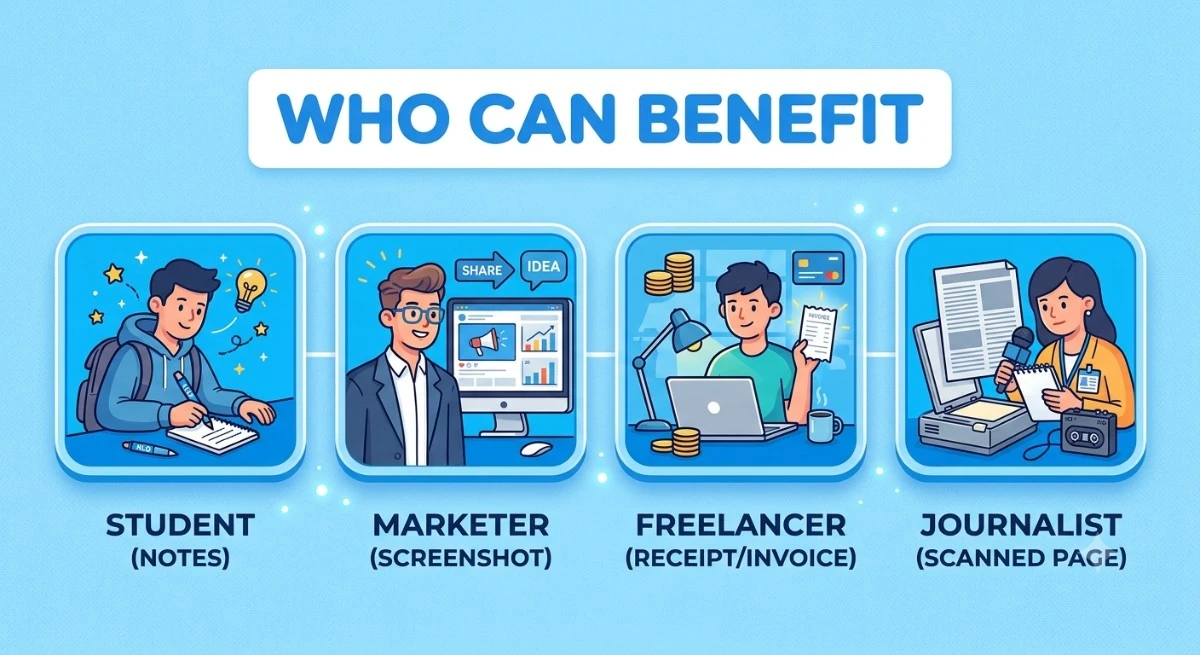
- Students can lift text from lecture slides, textbook pages and handwritten notes instead of retyping them before an exam.
- Marketers and content teams often need the wording from a competitor's screenshot, a social post, an infographic or a design mock-up. This gets it out for audits and research.
- Freelancers and small business owners can digitize receipts, invoices, business cards and forms without buying scanning software.
- Researchers and journalists can pull quotes and figures from scanned pages, photographed documents and old print material.
Getting Cleaner Results
No OCR tool is flawless, AI-powered or not. A few small habits still make a noticeable difference.
- Mind the light: Shadows and glare cause more bad reads than anything else.
- Hold the camera level: The model copes with tilted photos fairly well, but a flat, straight-on shot always comes out better.
- Use a sharp, high-resolution image: Tiny blurry text is hard for any model. Move closer and keep your hands steady.
- Crop before you upload: If you only need one paragraph, cut the image down to that paragraph. Less clutter means fewer mistakes.
- Read it over: This matters most with handwriting, where the result depends on how readable the original was. A thirty-second check will catch typos before anyone else does.
Frequently Asked Questions
1. Do I need to sign up?
No. You can start extracting text as soon as the page opens.2. Is a credit card or subscription required?
No. It's free, with no card, no trial period and no hidden charges.3. How accurate is it?
It relies on deep learning models built for reading text, and it does well with printed documents, screenshots and neat handwriting. Like every OCR tool, it won't be perfect, so give the output a quick proofread.4. Can it read handwriting?
Yes. The model has been trained on many fronts, handwritten styles included. How well it does depends mostly on how clear the writing is.5. Is it safe for confidential documents?
The images are processed in your browser through WebAssembly, so the files aren't uploaded to a server. That makes it a safer pick than cloud-based OCR for sensitive material.6. Which image formats work?
JPG, JPEG, PNG, WebP and BMP. Pasting from your clipboard works too.7. Is there a cap on how many images I can convert?
No. Everything runs on your device, so there's no limit.8. Can I use it on my phone?
Yes, in any modern mobile browser. Upload a picture or use your camera to capture the text directly.9. What languages are supported?
More than 100, including English, Spanish, Chinese and Japanese. The language is detected automatically, so there's nothing to select.Final Thoughts
Not long ago, OCR meant bulky desktop software, a maze of settings, or sending your files to a server you knew nothing about.
Now a free AI online OCR tool does the job in a browser tab, with no account, no usage cap and your files staying on your device.
If screenshots, scans or photographed text land on your desk regularly, try the Free AI Online OCR tool. Open it, drop in an image and see how fast the text appears.
Ready to try our AI tools?
Experience the power of free, private AI tools running directly in your browser.
Explore All Tools