Free Image Resizer: A Simple, Private Way to Get Photos

A Simple, Private Way to Get Photos to the Exact Size You Need
Chances are at some point when working with images, you’ll come across the issue of it being the incorrect size. Whether your product image is too large for an email, your screen shot isn’t the right aspect ratio for Instagram, your image on your flyer is too small for your website banner or you need to get your scanned document into a certain pixel size. Most desktop applications can seem quite clunky and many online resizers will require you to sign up, add watermarks or upload your file somewhere.
The Free Image Resizer on freeaitoolforthat.com allows you to easily change any image widths and heights to an exact pixel/percentage using a simple browser-based application. No sign-ups, watermarks or uploading your file anywhere.
What the Tool Actually Does
Scaling will resize your image using pixels. For example, if you have a 4000 x 3000 image and want to scale it down to 1920 x 1080. It's also very important to note that this is different to compressing as compressed files reduce the size of your file (either measured in kilobytes or megabytes). The Free Image Resizer will make sure you have the right sizes.
You can rescale your image to particular widths/heights or via percentages. You can also keep the aspect ratio so that when you change the width of your image the height will automatically be adjusted and vice versa. This ensures that your image doesn't look distorted. The Free Image Resizer uses high-quality algorithms to make sure your images are sharp and remain crisp when scaled down.
It supports many file types including JPG, PNG, WebP and PDF. At the moment you can only scale one image at a time to ensure quick and responsive scaling in your browser, but batch scaling is something that will be added in the future.
Why Privacy Stands Out
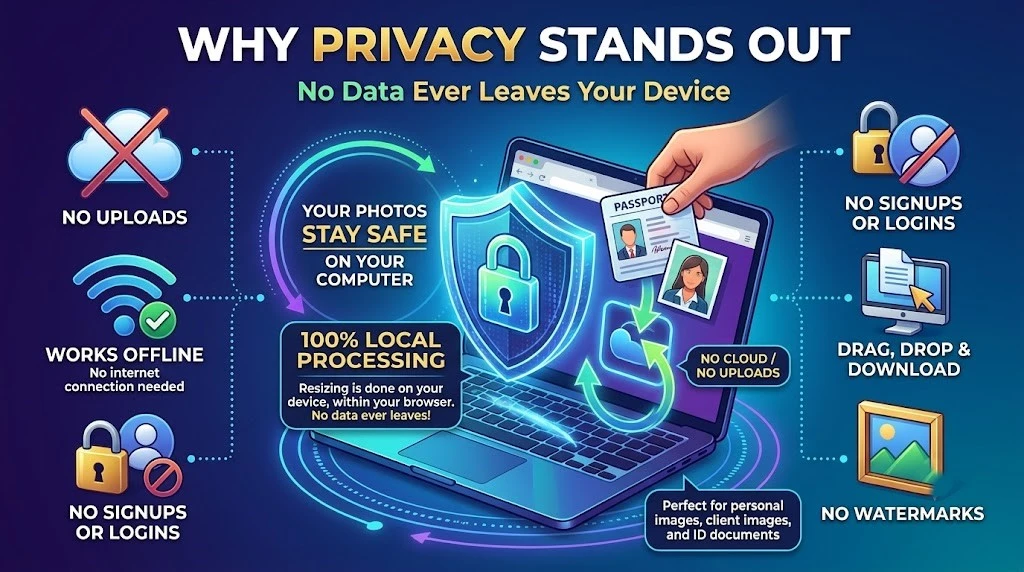
• 100% Local Processing: Resizing is done on your device within the browser.
• Your photos stay safe on your computer: No data ever leaves your device. Perfect for personal images, client images and ID documents.
• Can be used offline: No internet connection needed after the initial page load.
• No signups or logins are required: You don't need to sign up, log in, or create an account to use the service.
• Simply drag and drop, resize your images and download: Simply open the page, drag and drop an image, set your desired size, and download.
• No watermarks or limitations: Your end result will have no watermarks and can be used exactly how you wish.
Everyday Situations Where It Helps
Social media is often the reason for using a resizer tool. Whether it's for Instagram, Facebook, LinkedIn and X there are ideal sizes and aspect ratios. By using aspect ratio lock and inputting your desired dimensions (e.g. 1080x1080 for square posts), you can ensure your important image components aren't skewed.
Website owners will often use our resizer tool to create hero images, blog thumbnails and product images that are tailored to specific widths in their layouts. Students and professionals often require images or scanning documents to be an exact size.
Most of the time you'll be downsizing images and this will result in a high-quality image. If you're attempting to upscale an image (beyond its original resolution) using standard resize tools, then the overall image will appear blurry or low quality. This is because the software is simply enlarging the existing pixels. In these situations, we recommend using our dedicated AI Image Upscaler tool.
How to Use It
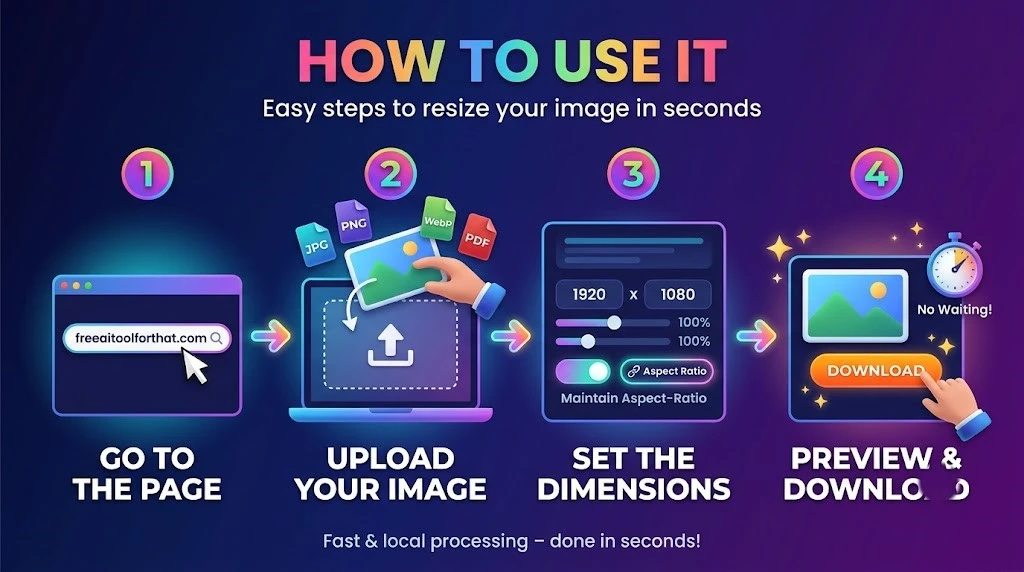
- Go to the Free Image Resizer page
- Select your image to upload or drop on the tool. This can be of any format including JPG, PNG, WebP and PDF.
- Input your desired dimensions or percentage. If you would like to maintain the aspect-ratio select the aspect-ratio button.
- Once you have previewed your image (if available), you can download your new sized image.
Practical Tips for Good Outcome
- Start with the largest, most high-quality image possible. You will generally get a better result by scaling down an image than scaling up.
- Lock your aspect ratio unless you specifically want to do an irregular sized image.
- If your file is still too large in megabytes after scaling, you can use another image compression tool (there is one available on the same site). This will reduce your file size but will not scale your image.
- Check what the recommended sizes are for whichever social media platform you're using. These can sometimes change. You can manually enter any pixel size what you want or wish using the resizer.
- If your image appears blurry after you have scaled it up, try using the AI upscaler.
Who Gets the Most Value?
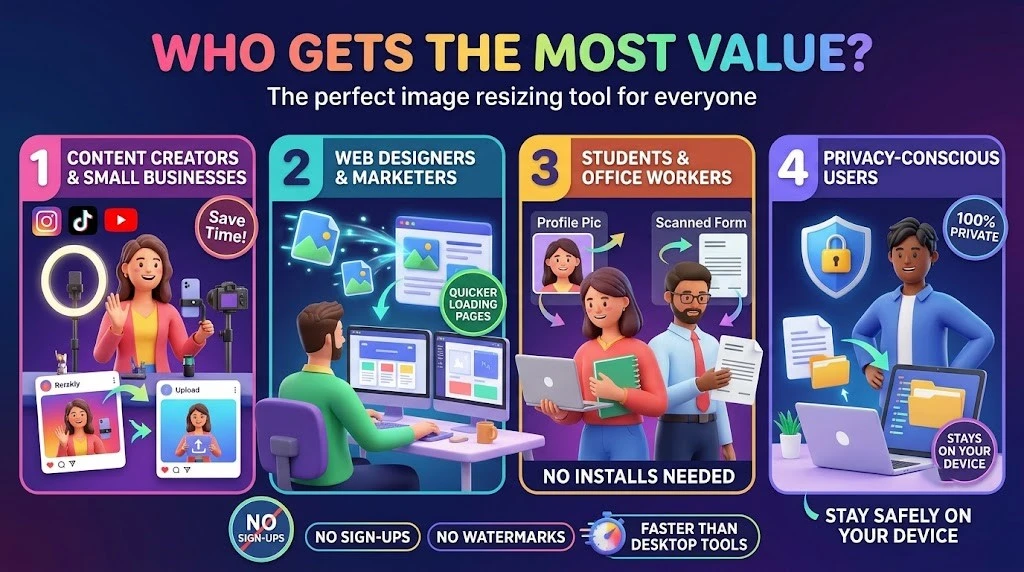
Content creators and small business owners can save time quickly adjusting to the rules of each social media platform. Website designers and marketers will benefit from quicker loading pages, as they’ll be using the correct sized images. Students and office workers can easily resize a profile picture, scanned form or presentation graphic without having to install any software.
Finally, anyone who cares about their privacy will appreciate that sensitive images will remain on their own device.
The lightweight tool will perform much faster than heavy desktop editing tools. Unlike many free online resizing tools there are no annoying sign ups, watermarks or uploading to the cloud.
Conclusion
As long as the image is the correct size, clear and ready to use, most people won’t require an entire studio in their browser. With Free Image Resizer from freeaitoolforthat.com, you can ensure your image is exactly the size you want, whilst keeping the aspect ratio. As everything is done locally, your data will remain private.
There are no watermarks and there is no need to sign up. It also works well with other image tools available on the site such as cropping, compressing, upscaling, removing objects and blurring faces. You can make use of all these tools to build an entire photo editing workflow.
If you frequently edit images for social media posts, websites, emails/documents then adding this to your bookmarks will help eliminate a small annoyance. Simply open the tool, select your size and download!
Frequently Asked Questions
What is the Free Image Resizer?
This is a web-based tool which allows easy resizing of your images by using pixels or percentages to resize the width and height.
Is it a free tool and will there be any watermarks?
This tool is fully free to use. You won’t even need to sign-up or login to this tool. You also will not receive any watermarks on your downloaded images.
Is my data kept private?
Your data is 100% safe. We use local processing; this means that everything is done on your device. You will never have to upload your images outside of your computer.
Do I need an internet connection?
You will need to have an internet connection to load the page but once loaded you can use this tool with no internet connection.
What file types can I use?
You can create type of file like JPG, PNG, WebP or PDF files.
Can I use multiple images?
We have made this tool so you can only resize 1 image at a time to provide fast and efficient browser performance. We are planning on adding batch resizing in a future update.
Will it make my file smaller (KB/MB)?
Resizing your image will alter the size (pixels) of your image. This is not compression. If you still have a large file you will need to use an image compressor tool.
How can I stop my image looking stretched?
Use the aspect ratio lock option. When enabled changing the width will automatically change the height (and vice versa).
Can I upscale my image?
You can scale your image but if you just upscale your image, it will stretch the current pixels making it look blurry. We recommend to use our AI Image Upscale tool to for upscaling the image.
How do I use this tool?
Open the Free Image Resizer page. Drag and drop (or upload) your image. Enter in your desired size or percentage. Enable the aspect ratio lock if needed. Preview your image. Download!
Ready to try our AI tools?
Experience the power of free, private AI tools running directly in your browser.
Explore All Tools