Free Image Cropper: Crop Photos Online Without Losing Quality

Every image you post online has a job to do. A profile picture must fit a circle, a YouTube thumbnail must fill a 16:9 frame, and an Instagram Story must stand tall on a phone screen.
The problem is that most photos never come in the right shape. They have extra background, stray objects, or awkward empty space.
That is where an image cropper helps. A free online image cropper lets you cut away what you don’t need and keep only the part that matters, without installing software or paying for a subscription.
In this guide, we’ll look at why cropping matters, how the Free Image Cropper from Free AI Tool For That works, and how to get the best results for social media and everyday use.
What Is Image Cropping?
Cropping means removing the outer parts of an image to change its framing, focus, or shape.
Unlike resizing, which scales the whole picture up or down, cropping physically trims pixels from the edges. The result is a smaller image that keeps only the area you selected.
People crop photos for several reasons:
- To remove distractions such as people, objects, or clutter in the background
- To improve composition and draw attention to the main subject
- To change the aspect ratio for a specific platform
- To create clean profile pictures, thumbnails, and banners
Meet the Free Image Cropper
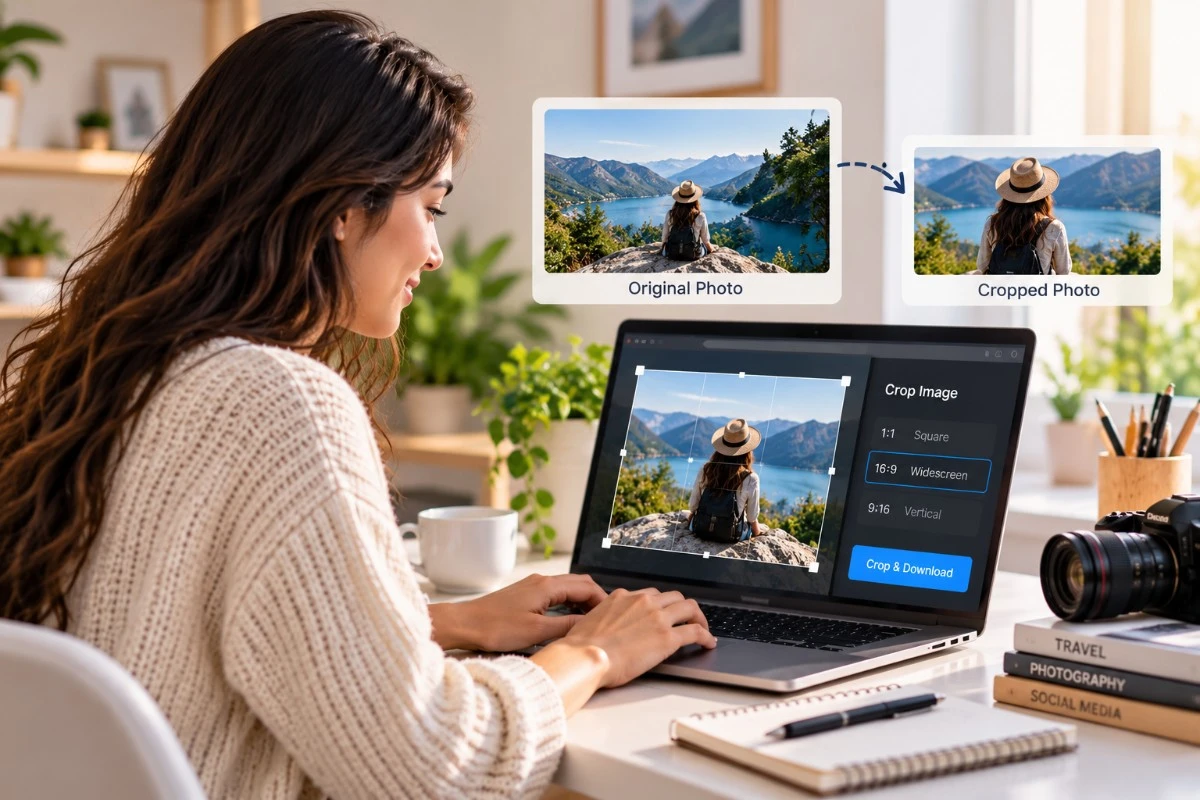
The Free Image Cropper is a simple, browser-based tool built for fast results. You upload a photo, drag the edges of the crop box to select the area you want, and download the new image.
There is no sign-up, no watermark, and no complicated menu to learn.
It supports the most common image formats: JPG, PNG, and WebP. That covers almost every photo from your phone, camera, or website.
Key Features
1. Visual, Drag-and-Drop Cropping
You don’t need to type measurements or guess dimensions. The tool shows your image with an adjustable box on top.
Drag the edges to resize it, move it to frame your subject, and see exactly what will be kept. What you see is what you get.
2. Built for Social Media
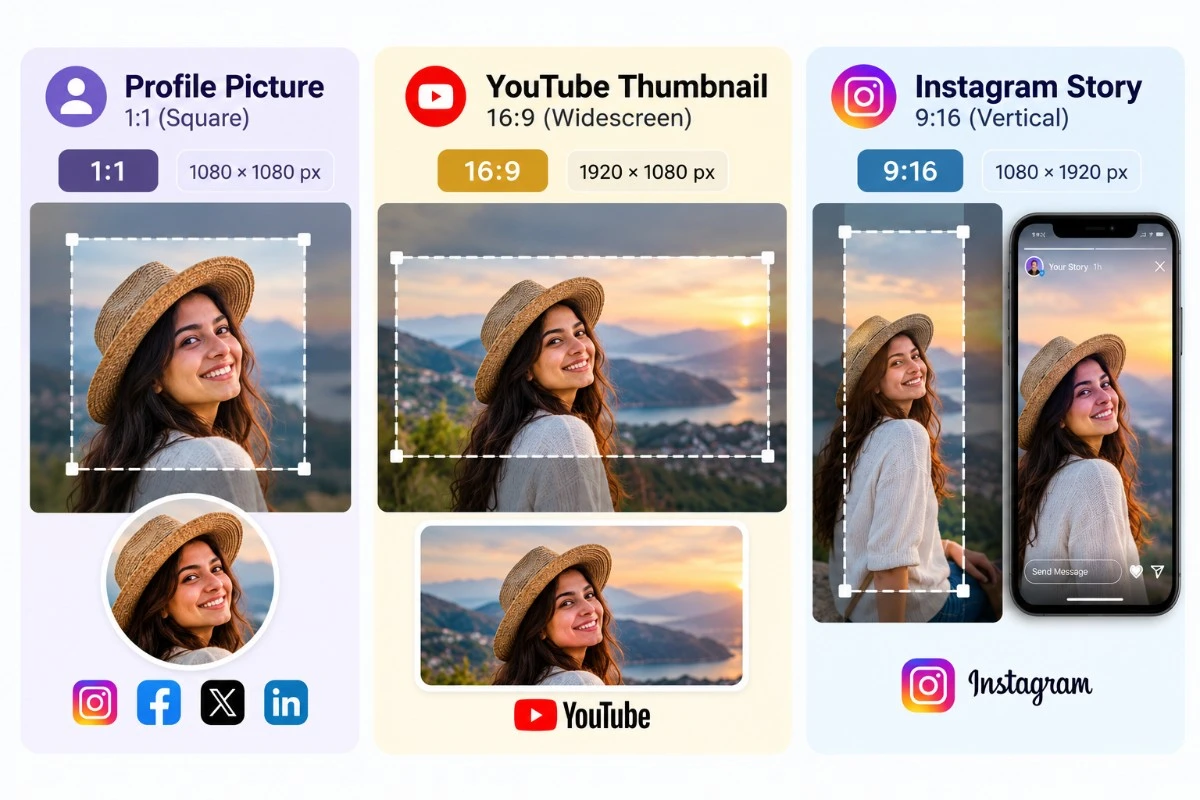
Different platforms need different shapes. With this cropper you can easily create:
- Profile pictures in a 1:1 square ratio
- YouTube thumbnails in a 16:9 widescreen ratio
- Instagram Stories in a tall 9:16 ratio
3. No Quality Loss
A common worry is that cropping will make a photo blurry. It won’t. The tool works with the raw image data, so the area you keep stays as sharp as the original.
The only change is that the final image has fewer pixels overall, since you removed part of the frame. The quality of what remains is untouched.
4. Easy for Everyone
Software like Photoshop is powerful, but it is also expensive and has a steep learning curve.
For a simple crop, it is overkill. With this tool the whole process is three steps: upload, drag the box, download. Most people finish in a few seconds.
5. Private and Secure
Privacy is a real concern when you upload personal photos to random websites. This cropper takes a different approach.
Your images are processed directly in your browser, on your own device. There is no upload to a server, no cloud processing, and no data collection.
That also means you can keep using the tool offline after the first page load. Your original file stays untouched on your computer, and you decide what to keep and what to remove.
How to Crop an Image Online: Step by Step
- Open the tool: Go to the Free Image Cropper page in any modern browser on your phone, tablet, or computer.
- Upload your photo: Choose a JPG, PNG, or WebP file from your device.
- Adjust the crop box: Drag the edges and corners to select the area you want to keep. Move the whole box to reposition it.
- Match your ratio: Make the box square for a profile photo, wide for a thumbnail, or tall for a Story.
- Download: Save the cropped image. Your original file remains safe.
Tips for Better Crops
A few simple habits can make your cropped photos look far better.
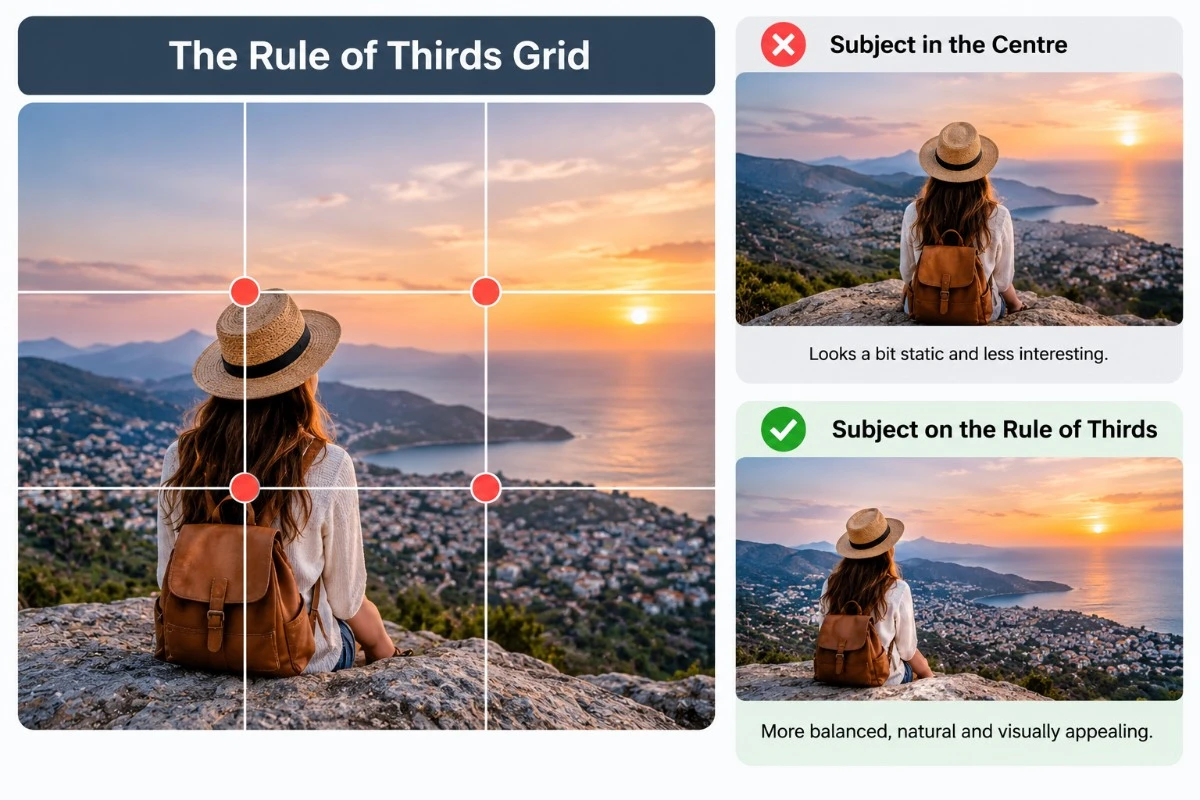
Follow the Rule of Thirds
Imagine the image split into a 3x3 grid. Placing your subject near one of the intersections usually looks more balanced than placing it dead centre.
Leave Breathing Room
Don’t crop too tightly around faces or objects. A little space around the subject makes the image feel natural.
Start with a High-Resolution Photo
Because cropping removes pixels, a larger original gives you more room to cut while keeping the final image sharp.
Think About the Platform First
Decide where the image will be used before your crop. A photo that works as a square may need a completely different framing as a wide thumbnail.
Keep Faces Safe from the Edges
On Stories and profile photos, platforms often overlay text, buttons, or circular masks. Keep important details toward the centre.
Who Can Use This Tool?
The cropper is useful for almost everyone:
- Social media managers: Prepare posts, Stories, and thumbnails for multiple platforms.
- Bloggers and content creators: Trim featured images and banners.
- Small business owners: Clean up product photos.
- Students and professionals: Adjust photos for forms, résumés, and presentations.
- Everyday users: Make photos neater before sharing them with friends and family.
Why Choose an Online Cropper Over Heavy Software?
Desktop editors give you many features, but most people only need one: a quick crop. An online cropper wins on speed and simplicity. It opens instantly, works on any device, and costs nothing.
Since this tool runs locally in your browser, you also get the privacy of offline software with the convenience of a web tool.
Frequently Asked Questions (FAQs)
1. Is the Free Image Cropper really free?
Yes. You can crop images without paying anything, and there is no sign-up required.
2. Are my photos uploaded to a server?
No. Your images are processed directly in your browser, so they stay on your device. There is no cloud processing or data collection.
3. Does cropping reduce image quality?
The sharpness of the area you keep stays the same. However, cropping removes pixels, so the final image will have smaller dimensions than the original.
4. Which file formats are supported?
You can crop JPG, PNG, and WebP images.
5. How do I crop an image for Instagram?
Upload your image and shape the crop box. Make it square (1:1) for a standard Instagram post, or a tall rectangle (9:16) for Stories.
6. Can I crop a photo for a YouTube thumbnail?
Yes. Adjust the crop box to a 16:9 widescreen shape, then download the result.
7. Can I undo a crop?
Before downloading, you can readjust the crop box or click Cancel to reset the image to its original state. After downloading, your original file is still safe on your device, since it is never changed.
8. Can I use the tool offline?
Yes. Because the processing happens locally in your browser, you can keep using it offline after the first page load.
9. Will the tool overwrite my original photo?
No. Your original file is never modified. You download the cropped version as a separate image.
10. Do I need to install any software?
No. The cropper works in your browser on desktop, tablet, or mobile.
Final Thoughts
Good images make good content, and good images often start with a good crop. The Free Image Cropper gives you a fast, private, and high-quality way to trim photos for any purpose.
Upload your image, drag the box, and download a perfectly framed result in seconds. No cost, no sign-up, and no complicated software.
If you want clean, professional-looking photos for your profile, your posts, or your website, give it a try today.
Ready to try our AI tools?
Experience the power of free, private AI tools running directly in your browser.
Explore All Tools